Merge Tool
The 3forge Merge Tool is a graphical interface available within AMI allowing multiple developers to collaborate dynamically and resolve conflicts in the same dashboard.
Please contact us at support@3forge.com for a version with the Merge Tool supported.
Overview
The 3forge Merge Tool is a context-aware graphical tree-based merge utility, improving upon traditional text-based merge tools. It aims to simplify code management, version control, and conflict resolution.
Its key features are:
-
Context awareness: While regular merge tools only process raw text differences, 3forge’s Merge Tool is able to group changes by context of the underlying layout structure. It knows that a chart is a chart, a script is a script, etc.
-
Graphical: 3forge’s Merge Tool uses an inbuilt GUI with buttons, collapsible trees, checkboxes, and more. This results in improved navigability and easier readability compared to reading raw XML or config files.
-
Tree-based: 3forge displays a tree diagram of dashboard layout differences. Since dashboards in 3forge are made of nested parts (tabs, panels, scripts, settings, data models, etc.), this approach makes it easier to navigate and understand development structures.
-
Intelligent Conflict Resolution: When multiple users modify the same component, 3forge highlights just the conflicting parts. 3forge uses a choice-based approach to merge conflict resolution, while also providing an automatic merge option.
How to Use
The Merge Tool works for files that are shared across different users in the amione/data/cloud directory. If a user makes and saves changes to a layout, it will overwrite the existing file in amione/data/cloud.
If multiple users save changes, this can result in conflicts. The Merge Tool prevents conflicts by informing a user of a layout change on-save, or allowing a user to review any changes before saving.
- To trigger the Merge Tool, navigate to the File-> sub-menu.
-
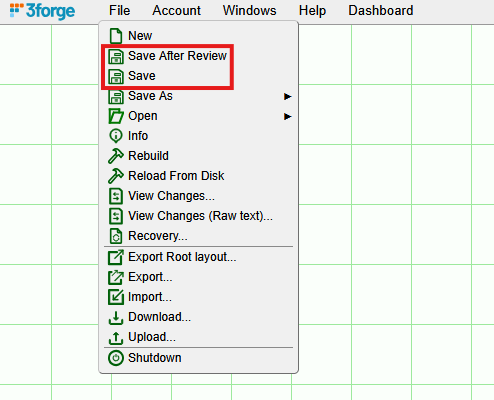
Users can opt to:
-
Save After Review
- Compare any changes to the original file from the
cloud("Base"), or to a more recently saved version of the file - Review and accept/merge changes then save
- Compare any changes to the original file from the
-
Save
- Automatically triggers the Merge Tool if there is a conflict
- Compare the changes between the original file from the
cloud("Base"), the other user(s) ("Theirs"), and your ("Yours") - Review and accept/merge changes then save
Interpreting the Merge Tool
No Changes
This is what the Merge Tool will output if no changes are made (same as the "Base"):
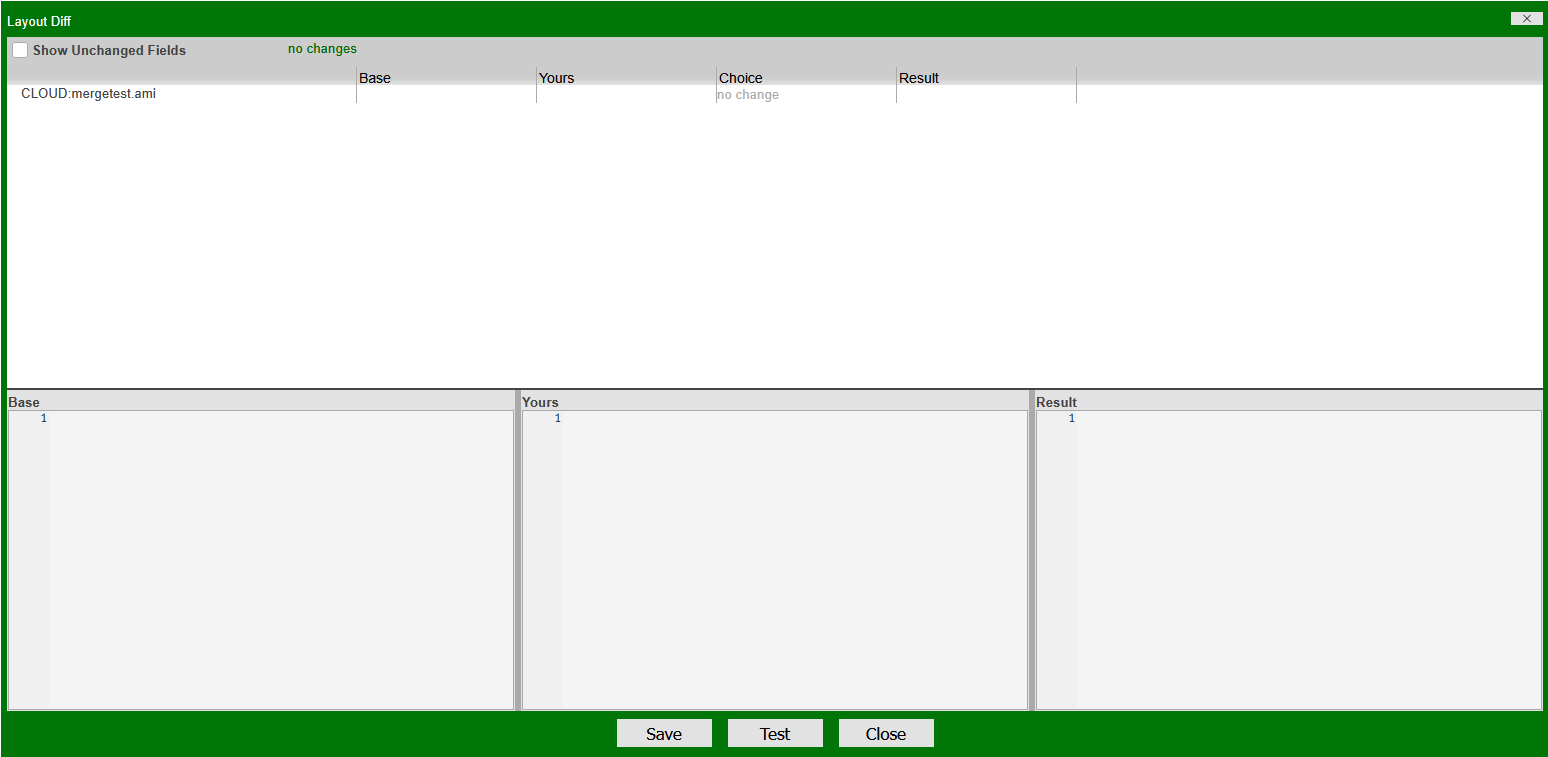
The top of the tool contains a summary of changes ("no changes" in green). As there are no changes, the tool is not populated.
Viewing Changes
Consider a layout with the following HTML panel:
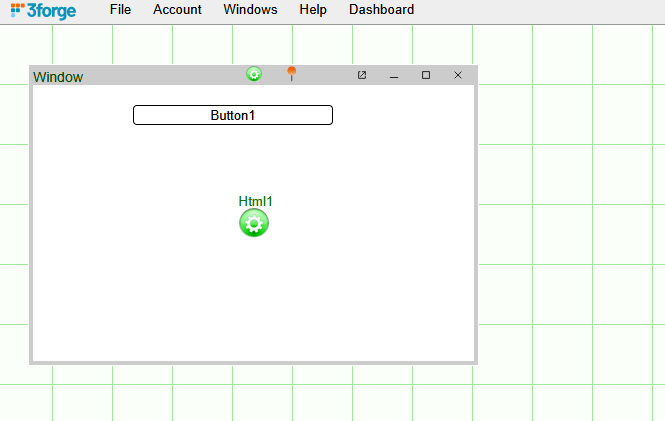
After some edits, a user has made the following changes:
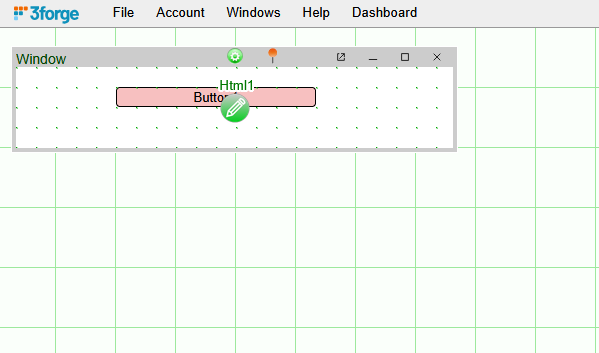
- Moved and shrunk the window with the HTML panel
- Changed the color of the HTML "button1" field
Clicking File->Save After Review will output the following window:
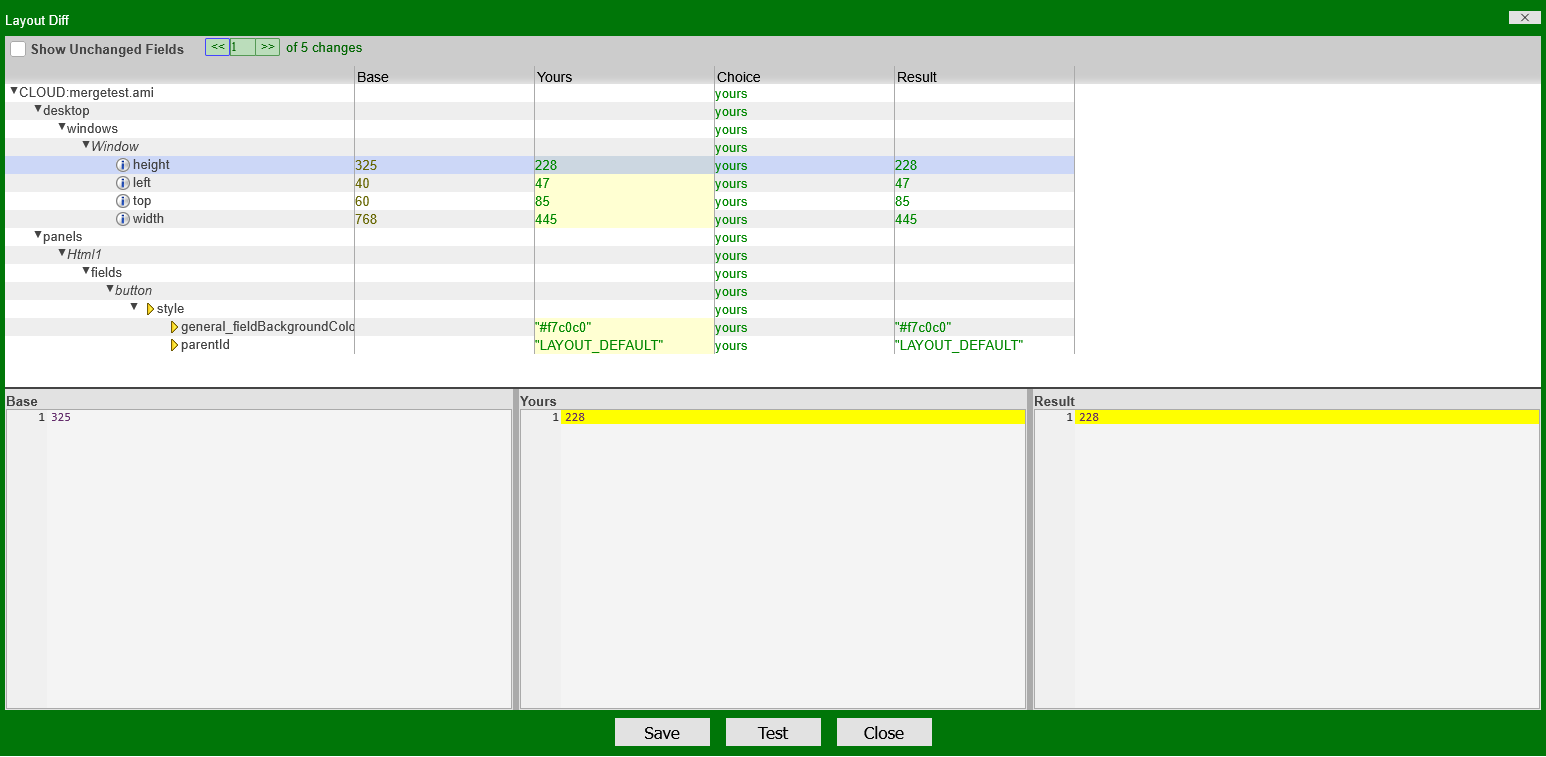
The very top of the tool shows the number of changes (5). It is green to indicate that there are no conflicting changes. The navigation arrows can be used to go through each change in the layout line-by-line.
The rest of the tool can be divided into two halves:
-
The top half of the tool shows a nested overview of changes made to the layout.
The navigational tree on the left-hand side describes the structure of the AMI layout's elements. Each collapsible row can be clicked and navigated through to highlight changes (in the image above, the selected value is the height of the "Window" element).
Unless the "Show Unchanged Fields" checkbox has been selected, the tool will only output elements that have changed. The tool has recognized that:
- The window "Window" has moved
- A styling change has been made in the panel element "Html1"
The remaining columns ("Base," "Yours," "Choice," "Result") give a brief overview of the single changes between each element and the resulting value.
-
The lower half of the tool shows the JSON representation of the changes. You can use this to select any level of nesting and the output layout JSON. For example, selecting the "panels" root node:
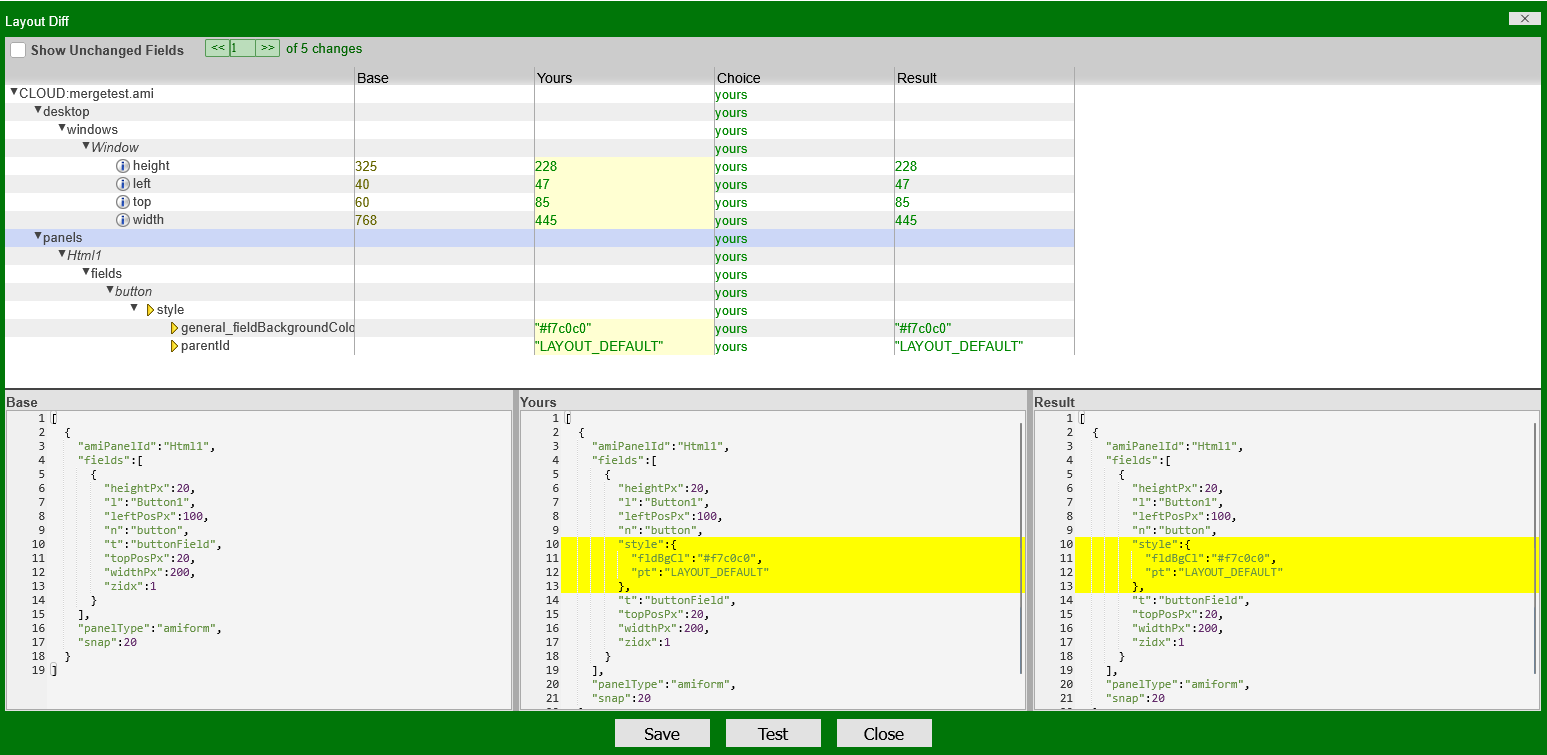
The highlighted sections show any changes from the "Base," including the updated JSON in the "Result" section - this will be the JSON of the layout after save.
The "Test" button in the middle can be used to preview layout changes as they would be in AMI.
The layout can then be saved using the "Save" button, overwriting the existing file in cloud and becoming the new "Base" file. This is equivalent to just saving the dashboard via File->Save.
Merging Changes
A user may also choose to keep some of the original layout choices and merge. The navigational tree can be used to select which elements to change and compare during the review process.
For the layout above:
- Revert the window "Window" sizing changes
- Keep the color change in "Html1"
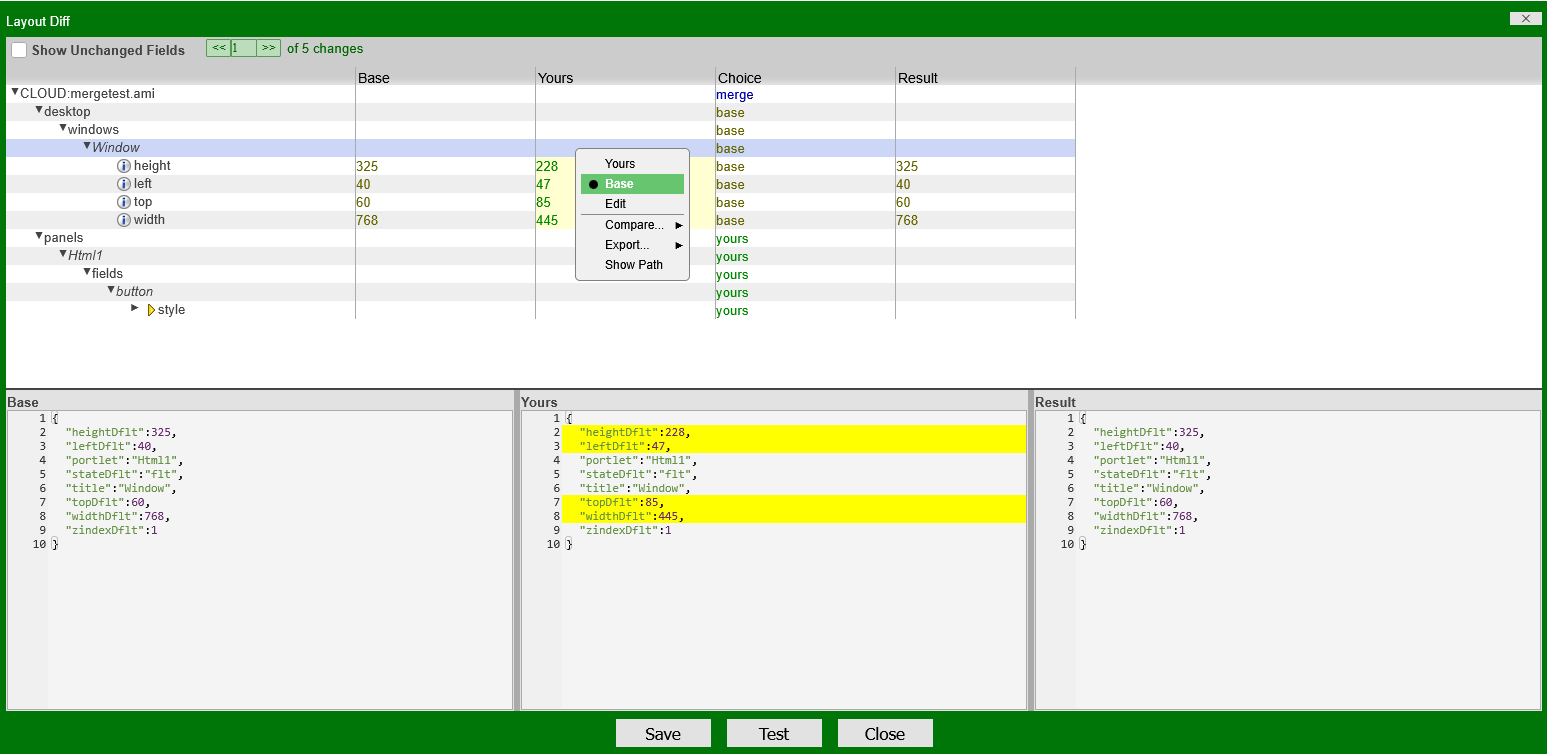
Using the left-hand tree, select the "Window" row in the navigation tree. Nested under it are the attributes describing its dimensions which have been changed ("Yours").
Right-clicking on this row will bring up a drop-down menu. Selecting "Base" will revert the "Result" JSON back to the "Base" version for the "Window" element.
Note
Notice that at the top, the "Choice" column has now updated with "merge."
The Merge Tool also allows users to view merged changes as they would appear in a dashboard using the "Test" button:
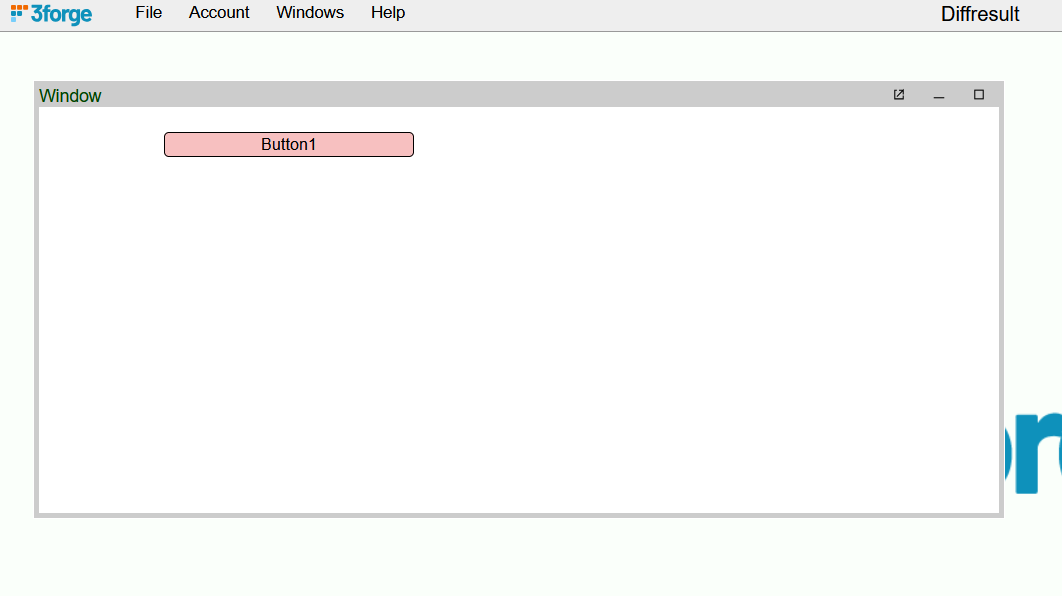
This allows users to easily compare and review how changes will actually appear, rather than interpreting JSON directly. Save the changes when satisfied using the "Save" button.
Merge Conflict and Resolution
Merge conflicts occur when two or more users work on the same layout and create changes that directly contradict the other.
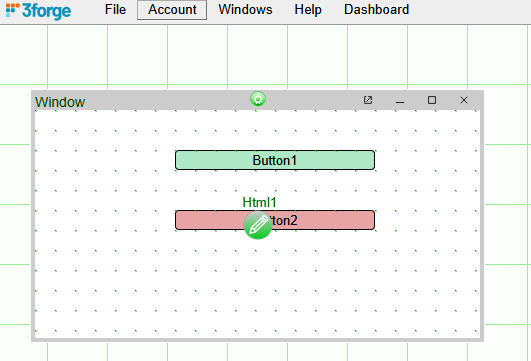
User 1 has worked on and and saved the following layout to the cloud:
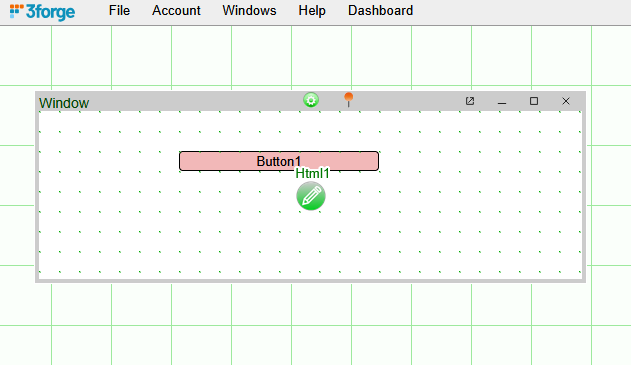
However in the same layout, user 2 has made these changes instead:
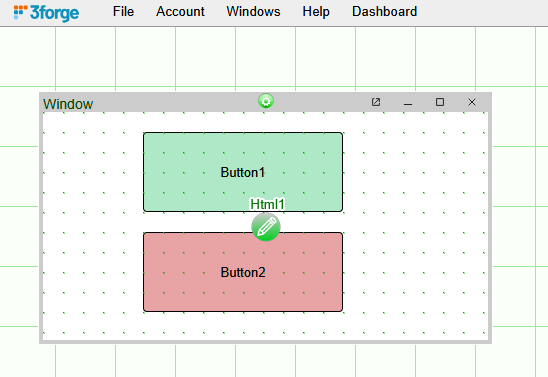
When user 2 goes to save the layout, it will trigger the Merge Tool:
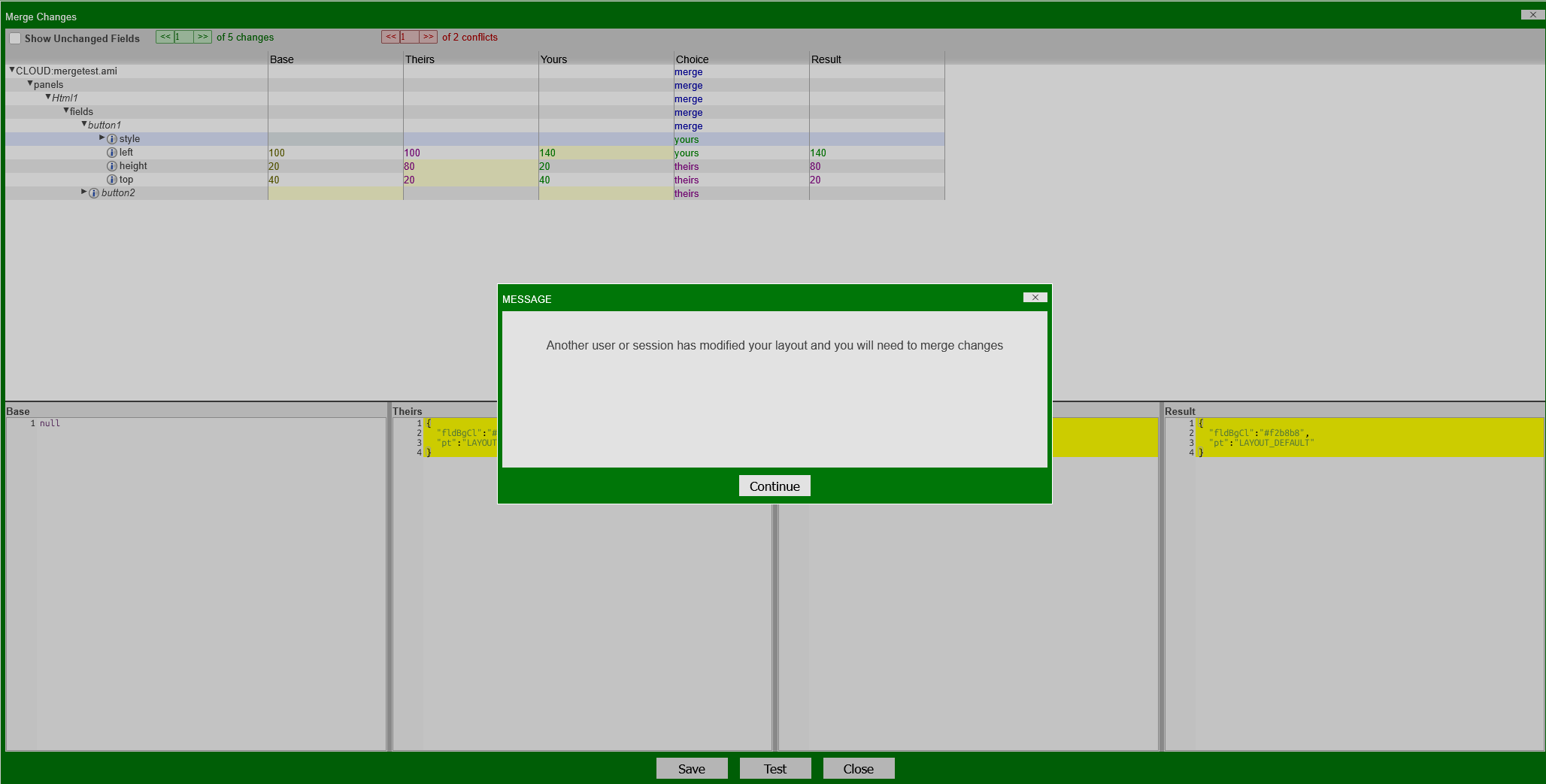
The top of the tool again shows the number of changes (5) compared to the other user. There is also a second summary showing the number of conflicts (2) in red.
Note
The Merge Tool will attempt to resolve conflicts by proposing suggested choices, highlighted in the "Choice" column. The resulting layout can be viewed with the "Test" button.
These choices can be changed by the user at any point.
Clicking on the navigable arrows in the conflicts menu will bring the user to code that must be resolved. In this case:
- The field "button1" has conflicting colors
- The field "button2" exists in one layout but not the other
User 2 can then resolve these conflicts by using the arrows in the conflict navigation, or the navigation tree, and selecting which changes to keep.
The resulting changes can be viewed with the "Test" button before saving:
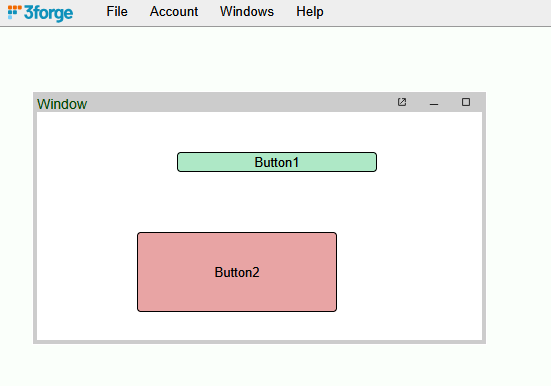
User 2 can then continue to work in the newly merged layout and save the final result: