Multiple Layouts
3forge supports the use of multiple layouts within a single dashboard (also known as the 'root layout') which can be helpful for modularization or abstraction.
Layouts are saved as JSON files with the extension .ami and are easily reused across different 3forge instances.
Overview
Currently, 3forge supports two ways of importing multiple layouts from a single dashboard:
-
Included Layouts
-
Importing a layout as JSON
Included Layouts are recommended.
To import layouts using JSON, navigate to File -> Import and paste the JSON values directly into the pop up.
Note
This will overwrite your current working layout. If you wish to use multiple files, please use the first option.
Included Layouts
Root Layout
To access multiple layouts and their data in your dashboard, you can "include" additional .ami layout files in your current dashboard. This sets your current instance of 3forge to the "root layout."
Doing so will establish a parent-child relationship from the root layout to any included layout.
Adding Layouts
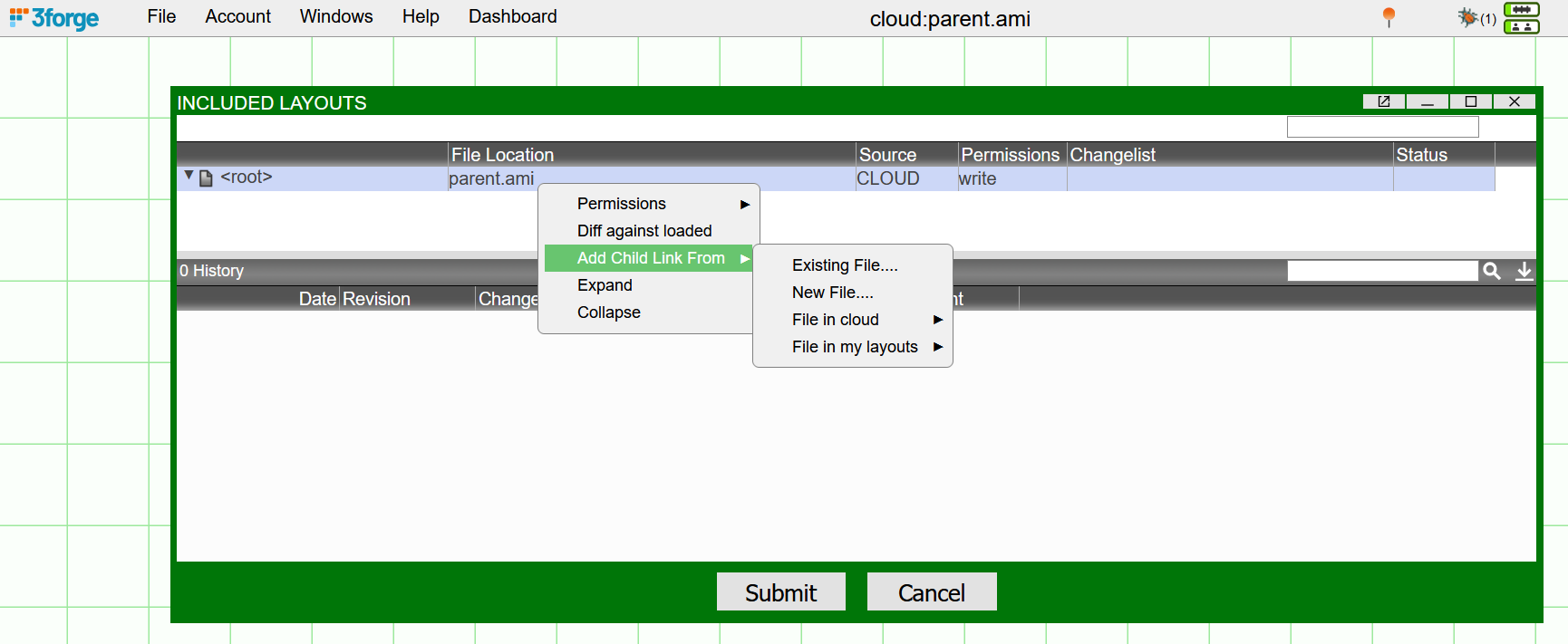
To add new layouts, click on Dashboard -> Included Layouts
=== "Add an existing file":
1 2 3 | |
=== "Add a new file":
1 2 | |
Note
Relative paths must be consistent - a cloud stored parent can only have a relative path to a cloud stored child layout.
Nested Inheritance
Panels and datamodels defined in a child layout can be accessed within the parent but not vice-versa.
Tip
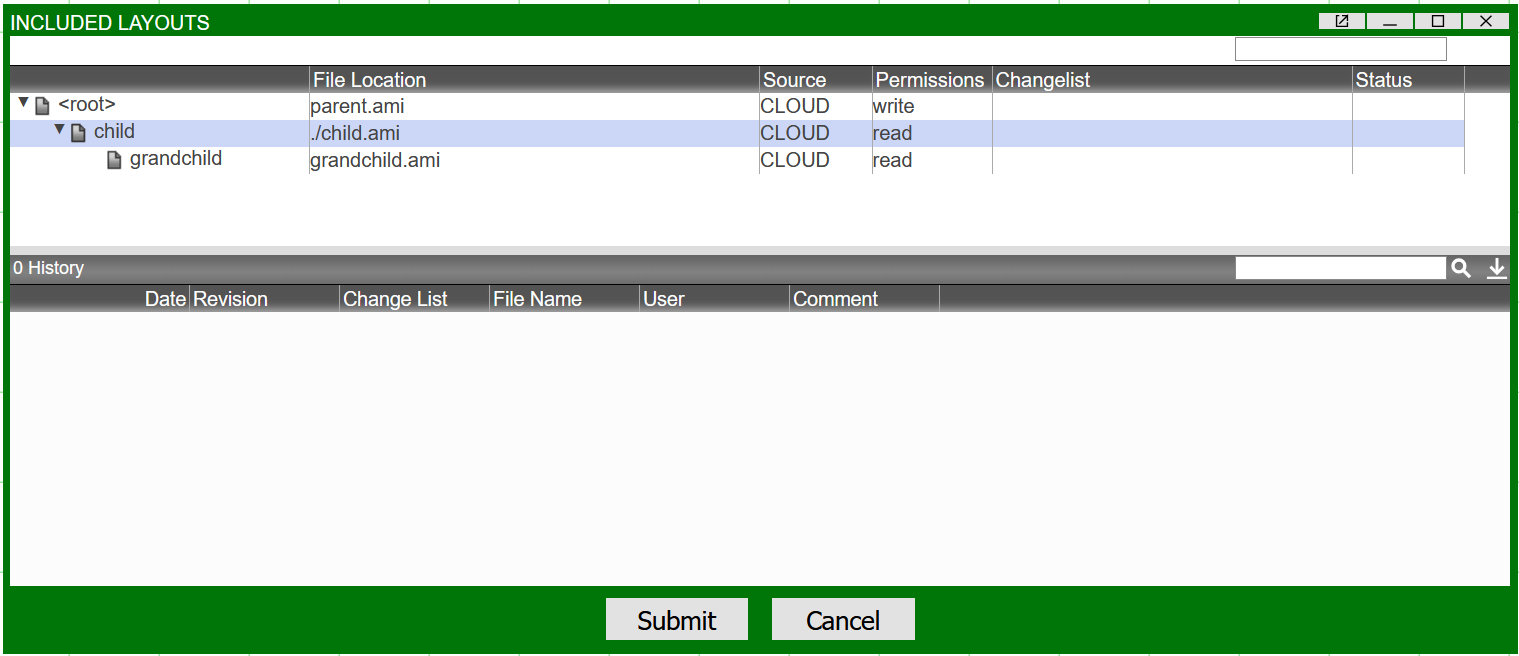
It is possible to establish nested layout relationships such that a child layout can have a grandchild layout, etc.
Currently, 3forge supports up to 4 layers of Included Layout nesting.
Datamodels of the child and grandchild layout can be viewed in the Data Modeler. Nested relationships and methods are structured such that calling data from a child layout is done via dot-concatenation.
E.g: child.grandchild.datamodel.
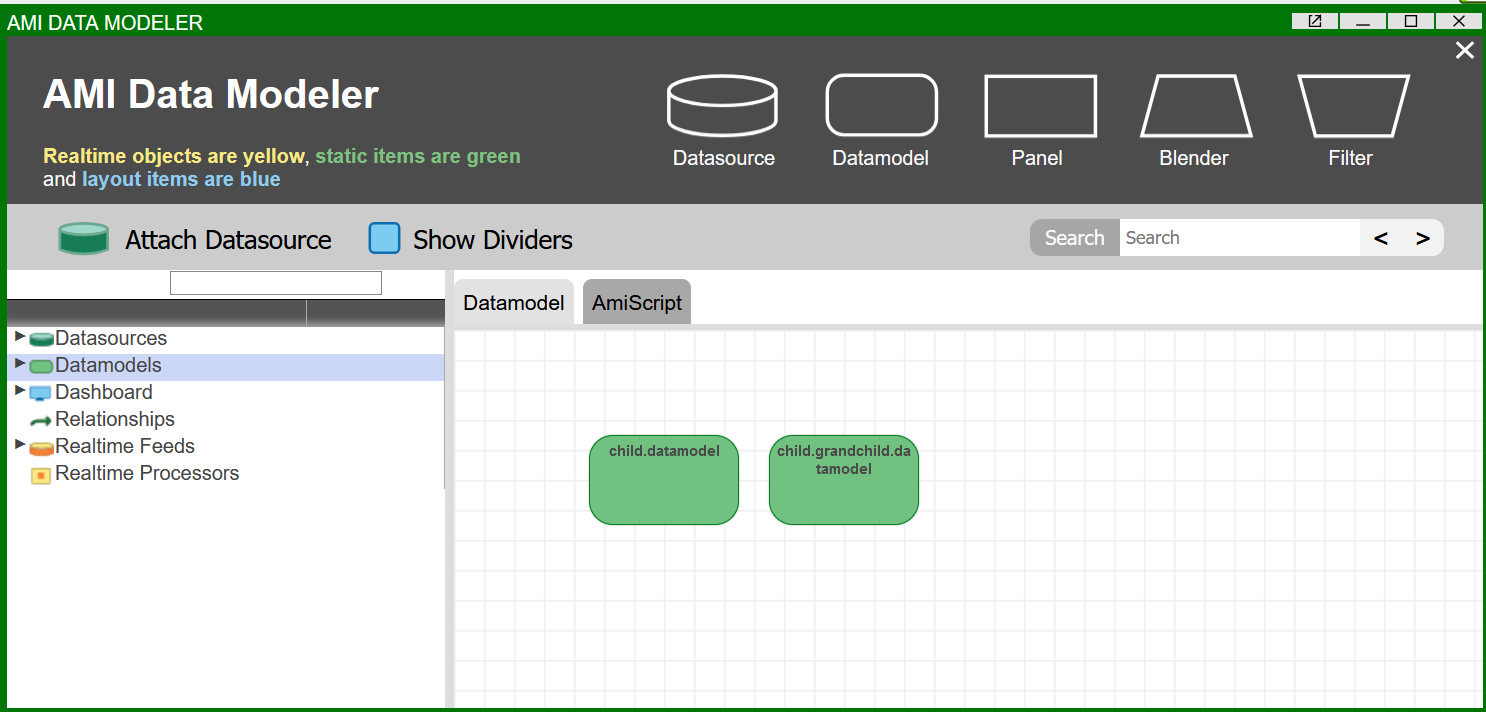
A child layout's datamodels will be visible within the Data Modeler of the parent layout but not its panels.
To call these panels, links need to be established when creating new panels in the parent layout.
Linking Child Panels
To use a panel from the child layout, create a new window in the current/parent layout, select the green cog and press Link To Panel.
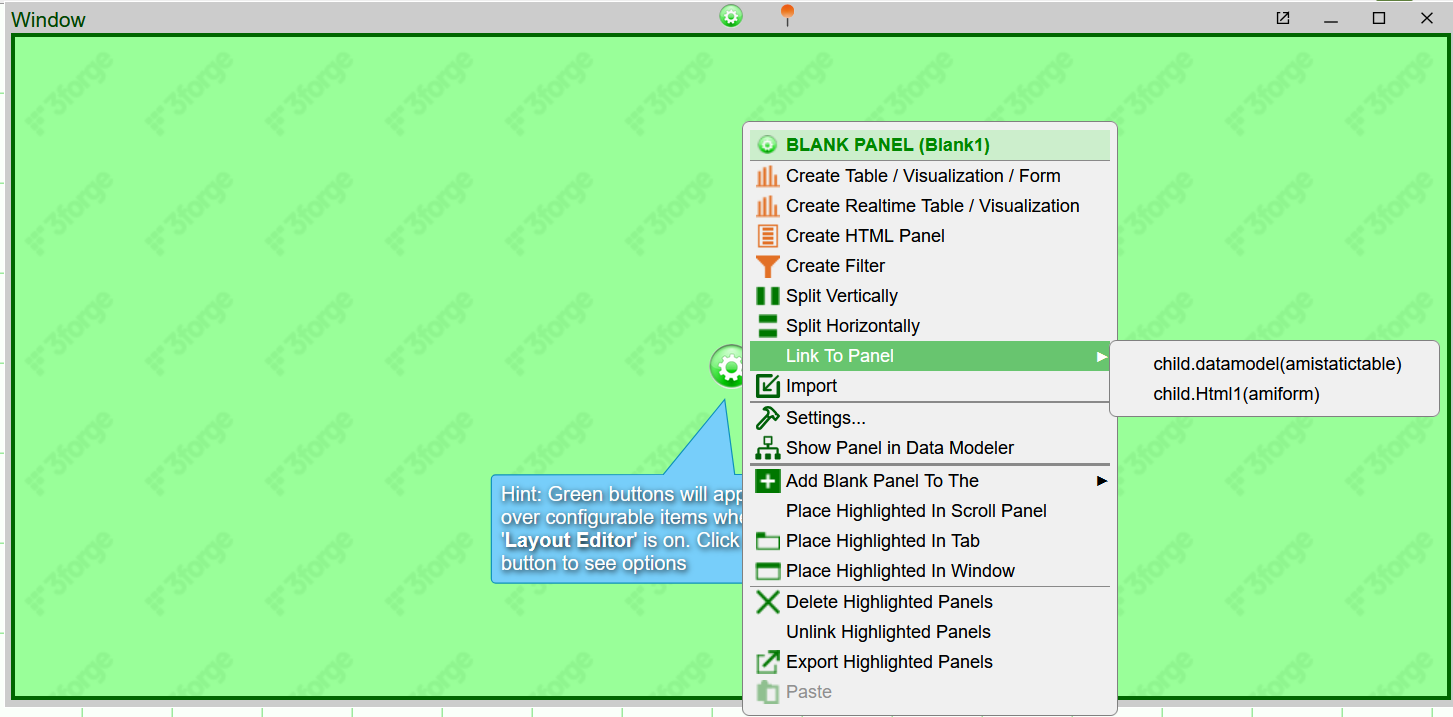
You can then view the selected child panel with the alias specified when you included the layout.
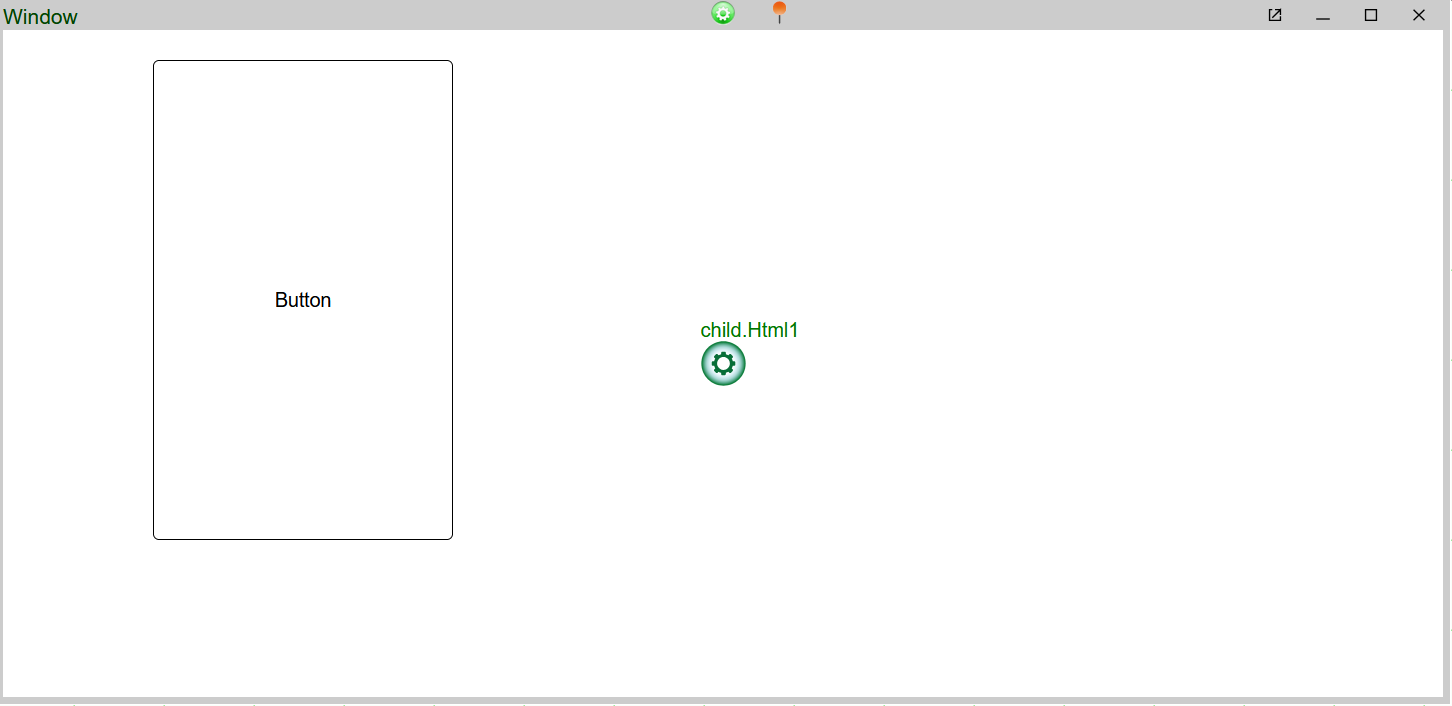
To remove the panel, select the cog again to unlink it.
Note
If you have write permissions enabled for the child layout, any deletions you make of child layout objects within the parent layout will delete the corresponding information in the child layout. Use unlink if you want to keep underlying panels.
Alternatively, keep the child and grandchild layouts read only so you can only unlink panels, not delete them.
Any changes you make in the child layouts will be carried over into the parent layout. If you wish to entirely remove the child layout, navigate to the Included Layouts menu, and right-click the layout you no longer want to unlink it.
Virtual Methods
By default, child layouts do not have access to their parent layouts' AmiScript. To inherit AmiScript methods, the child layout can explicitly define a "virtual method" - a function that is defined in both the parent and child layout.
To do so requires the virtual keyword:
Parent Layout
Child Layout
The function doit() will return the following:
-
test1();"parent1"- The method
#!test1()is virtual and calls the equivalent parent method
-
test2();"child2"- The method
#!test2()is not virtual and thus logs the alert defined in the child method