Skip to content
Architecture > Advanced Setup

Running 3forge with Kubernetes

This guide will take you through installing Kubernetes and deploying AMI on a Kubernetes node. For information about distributed deployment, please see this article instead.

Setting up Kubernetes

If you have already installed Kubernetes, feel free to skip to configuration.

This guide is for Windows systems using Chocolatey. The same actions can be performed in Unix/Linux systems with minor adjustments to command line syntax. You will also need to have Docker Desktop installed.

  1. If you don't already have it, install Chocolatey by pasting the following command into Powershell (in administrator mode):

    1
    2
    3
    Set-ExecutionPolicy Bypass -Scope Process -Force;
    [System.Net.ServicePointManager]::SecurityProtocol = [System.Net.SecurityProtocolType]::Tls12;
    iex ((New-Object System.Net.WebClient).DownloadString('https://chocolatey.org/install.ps1'))
    

  2. Install Minikube and kubectl with the command:

    choco install minikube kubernetes-cli -y
    

  3. Start Docker Desktop, and run the following command in your Powershell:

    minikube start --driver=docker
    

  4. Then, use the command kubectl get nodes. Your powershell should look something like this:
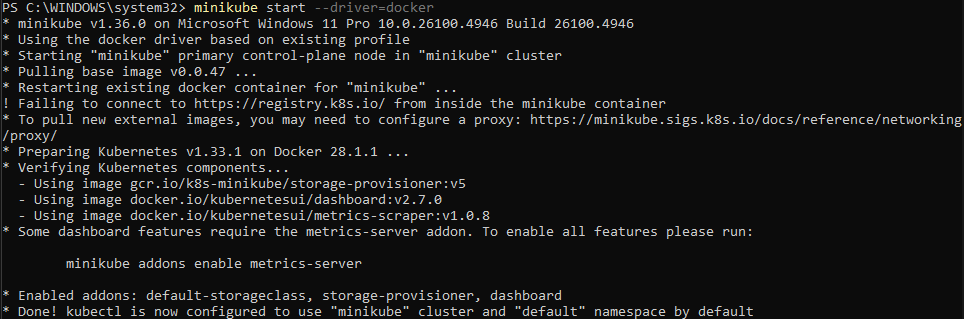
    You should now have a working Kubernetes cluster.

Configuration

  1. Create an Image Pull Secret (Optional). To allow your Kubernetes cluster to pull your private Docker image, you must create a secret containing your Docker Hub credentials.
    Run the following command, replacing the placeholders with your actual Docker Hub username and password or an access token.

    1
    2
    3
    4
    kubectl create secret docker-registry regcred \
        --docker-server=https://index.docker.io/v1/ \
        --docker-username=[your docker hub name] \
        --docker-password=[your docker password or token]
    

  2. Create persistent directory on the Node. Before deploying k8s, you must create the following directory on the k8s node that will host the data. SSH into your chosen node and follow the steps:
    First, list the nodes and choose which one you want to use:

    kubectl get nodes
    
    Launch a debug pod on the chosen node:
    kubectl debug node/<YOUR_NODE_NAME> -it --image=ubuntu
    
    Create the directory as needed:
    mkdir -p /host/mnt/data/ami-0
    
    And finally, exit:
    exit
    

  3. Prepare Kubernetes manifests by creating a new folder named 'k8s' anywhere on your system, and add the following yaml files:

    This bundles all Kubernetes resources together, which you can deploy with a single command.

    1
    2
    3
    4
    5
    6
    7
    8
    apiVersion: kustomize.config.k8s.io/v1beta1
    kind: Kustomization
    
    resources:
    - statefulSet.yaml
    - services.yaml
    - storageClass.yaml
    - persistentVolume.yaml
    

    This defines a StorageClass for local volumes.

    1
    2
    3
    4
    5
    6
    7
    8
    # Storage Class
    apiVersion: storage.k8s.io/v1
    kind: StorageClass
    metadata:
        name: ami-storage-class
    provisioner: kubernetes.io/no-provisioner # Change to cloud as needed
    volumeBindingMode: WaitForFirstConsumer
    reclaimPolicy: Retain
    

    This defines local PersistentVolume (PV) that maps to the directory you created on the node (not necessary if using cloud storage).

    # Persistent Volume (Create more as needed)
    apiVersion: v1
    kind: PersistentVolume
    metadata:
        name: ami-pv-0
    spec:
        capacity:
            storage: 5Gi
        volumeMode: Filesystem
        accessModes:
            - ReadWriteOnce
    persistentVolumeReclaimPolicy: Retain
    storageClassName: ami-storage-class # Must match the name in statefulset.yaml
    local:
        path: /mnt/data/ami-0
        nodeAffinity: # Define PV on a specific node
        required:
            nodeSelectorTerms:
            - matchExpressions:
                - key: kubernetes.io/hostname
                operator: In
                values:
                - docker-desktop # Change to your node name
    

    This creates two types of services for network access:

    • Headless Service: provides unique DNS entry for each pod within the cluster for stable internal communication.

    • NodePort Service: exposes pod individually to external traffic on a static port on the host node.

    # Headless Service for internal communication
    apiVersion: v1
    kind: Service
    metadata:
        name: ami-headless-service
    spec:
        clusterIP: None # makes the service "headless".
    selector:
        app: ami
    ports:
        - protocol: TCP
        port: 80 # Port for internal communication
        targetPort: 33332
    ---
    # NodePort Service (create more as needed)
    apiVersion: v1
    kind: Service
    metadata:
        name: ami-instance-0-service
    spec:
        type: NodePort
        externalTrafficPolicy: Local
        selector:
            statefulset.kubernetes.io/pod-name: ami-instance-0
    ports:
        - port: 80
        targetPort: 33332
        nodePort: 30080 # NodePort for external access
    

    A StatefulSet is used to manage stateful applications that provide each pod with a persistent and unique network identifier (e.g., ami-instance-0, ami-instance-1) and dedicated storage.

        # Stateful Set
        apiVersion: apps/v1
        kind: StatefulSet
        metadata:
            name: ami-instance
        spec:
            selector:
            matchLabels:
                app: ami # Must match the labels below.
            serviceName: "ami-headless-service"
            replicas: 1
            template:
                metadata:
                labels:
                    app: ami
                spec:
                    imagePullSecrets:
                        - name: regcred
                    subdomain: ami-headless-service # Must match the serviceName.
                    initContainers: # Tmp container for copying persisted files
                        - name: init-default-files
                        image: ami-image # whatever your AMI docker image is called.
                        command:
                            - "sh"
                            - "-c"
                            - |
                            set -e
                                echo "Initializing default directories..."
                                for dir in config data hdb lib persist scripts web_resources; do
                                    if [ ! -d "/init-data/${dir}" ]; then
                                        echo "Copying default '${dir}' directory..."
                                        cp -r "/ami/amione/${dir}" /init-data/
                                fi
                                done
                                echo "Initialization complete."
                        volumeMounts:
                        - name: ami-local-storage
                        mountPath: /init-data
                    containers:
                    - name: ami-container
                    image: franc1sd/ami:dev
                    imagePullPolicy: IfNotPresent
                    ports:
                        - containerPort: 33332
                    volumeMounts: # mount more directories as needed.
                        - name: ami-local-storage
                        mountPath: /ami/amione/config
                        subPath: config
                        - name: ami-local-storage
                        mountPath: /ami/amione/data
                        subPath: data
                        - name: ami-local-storage
                        mountPath: /ami/amione/hdb
                        subPath: hdb
                        - name: ami-local-storage
                        mountPath: /ami/amione/lib
                        subPath: lib
                        - name: ami-local-storage
                        mountPath: /ami/amione/persist
                        subPath: persist
                        - name: ami-local-storage
                        mountPath: /ami/amione/scripts
                        subPath: scripts
                        - name: ami-local-storage
                        mountPath: /ami/amione/web_resources
                        subPath: web_resources
            volumeClaimTemplates:
            - metadata:
                name: ami-local-storage
            spec:
                accessModes: ["ReadWriteOnce"]
                storageClassName: "ami-storage-class" # Must match the name in storage.yaml.
                resources:
                    requests:
                        storage: 5Gi # Adjust as needed.
    
  4. Run the following command from the k8s directory using kustomize:

    kubectl apply -k .
    

  5. Check the status of your pods. You should see them being created sequentially, from ami-instance-0 to ami-instance-2:

    kubectl get all
    

Cleanup

Option 1: Delete only the workloads (keep the instance-volume bind). To do this, run the following commands from the k8s directory to delete only the services and pods:

1
2
3
kubectl delete service/ami-headless-service
kubectl delete service/ami-instance-0-service
kubectl delete statefulset/ami-instance
Option 2: Complete Deletion (use with caution). To delete ALL the resources created by this guide, run the following command. Your data stored in /mnt/data/ami-0 will be orphaned but will remain on the node's disk:
kubectl delete -k .