Admin Consoles
3forge Enterprise exposes several administrative surfaces over the same governed user store. Which one you reach for depends on whether you are managing component lifecycle, interacting with a Center's data, or driving operations from an AI client.
The Surfaces
| Surface | Access | Use for |
|---|---|---|
| F1 admin console | ssh -p 3285 user@<host> (printed at startup) |
Component lifecycle, plugin inspection (showPlugins()), feed handler management, debug commands |
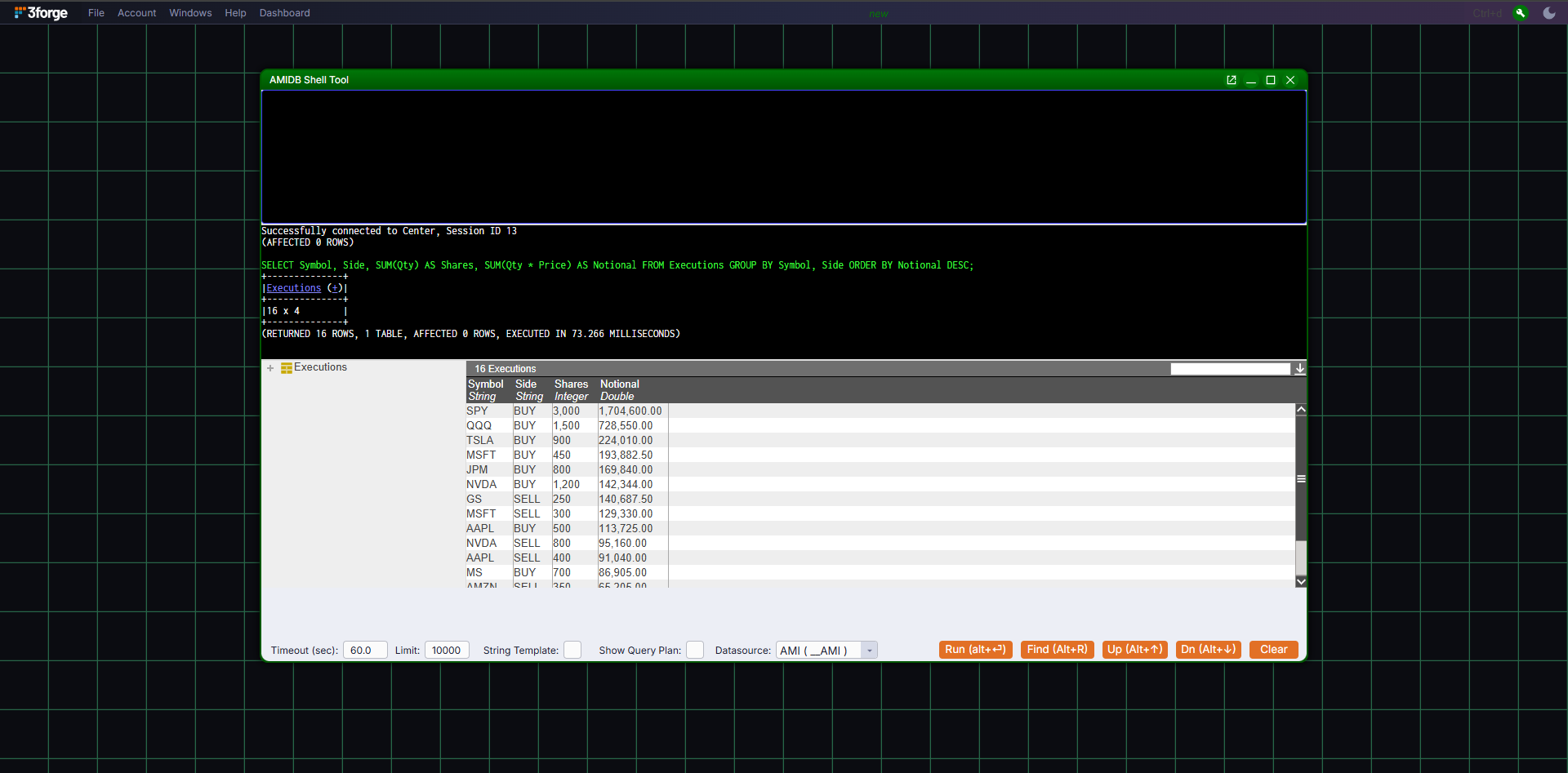
| AMIDB Shell Tool | Web -> Dashboard -> AMIDB Shell Tool, or ssh to ami.db.console.port (default 3290) |
Interacting with the Center in MySQL-like syntax |
| MCP admin surface | /3forge_rest/mcp (see AI Agent Access) |
The same administrative operations, exposed as tools to AI clients |
Developer Mode
Press Ctrl+D to enter Developer mode. The Dashboard menu then carries the tooling surface:
- "Data Modeler"
- "AMIDB Shell Tool"
- "Style Manager" (see Styles & Themes)
- "Custom Methods"
- "Admin Tool"
The F1 Console
The F1 admin console is the primary lifecycle surface. From it you can:
- Add, remove, stop, and start components (see Component Management).
- Inspect plugins with
<component>.showPlugins()(see Managed Plugins). - Manage feed handlers with
addFeedhandler/updateFeedhandlerOptions/removeFeedhandler. - Drive the Center debugger with
center_debugcommands.
Because the console is authenticated against the same user store as the Web component, the operations you can run are bounded by your entitlements.
Related
- Operations Hub: estate-wide monitoring, above the per-instance consoles.
- AI Agent Access (MCP): the same operations exposed as tools to external AI clients.