LoadFile
The LoadFile command to load external files into AMI via the Relay.
Overview
The Relay is responsible for sending real-time data to and from AMI applications via the realtime messaging API. This allows external applications to interface with AMI, typically feed handlers and AMI Client applications.
In specialized circumstances, the Relay can also be used to load and read tabular data directly from a file. The Relay then streams that information to a Center table.
This page contains instructions on setting up and running the LoadFile command.
Setup
Requirements
You will need the following:
- The directory containing the raw files
- The Relay port (
ami.port=3289by default) - Telnet
Configuration
Like the Center and Web, the Relay has an optional resources directory. This can be set by the user via local.properties:
Note
This is the same directory that the Replay command uses.
LoadFile Command Syntax
LoadFile commands use the following syntax:
Additional optional parameters can be added in a pipe-delimited list. See the table below for a description of each parameter.
| Parameter | Description | Example |
|---|---|---|
V|T="LoadFile" |
Sets command to LoadFile | V|T="LoadFile" |
LOGIN |
String identifier for the process calling the command | LOGIN="user" |
FILE |
Name of the file to read | FILE="AAPL.csv" |
COLUMNS |
Name of the data columns in a comma-delimited list | COLUMNS="Date,Open,High,Low" |
CLASSES |
Data type classes corresponding to the columns | CLASSES="String,Double,Double,Double" |
MPS (Optional) |
Maximum number of lines per second read from the file | MPS=10 |
NULL (Optional) |
Value that if found should be treated as null (default is null) |
NULL="null" |
QUOTES (Optional) |
Character value if found should be treated as quotes (e.g: #123# becomes 123 if # is the quote character) |
QUOTES="#" |
LIMIT (Optional) |
The maximum number of lines to be read from the file, by default this is the Java Long type's maximum value | LIMIT=10 |
SKIP (Optional) |
The number of lines from the beginning of the file to skip, by default this is 0 | SKIP=1 |
DELIM (Optional) |
The character or characters to delimit rows by, by default this is , |
DELIM="." |
TYPE (Optional) |
The name of the Table created in the Center, this defaults to "FILE: |
TYPE="AAPL" |
Note
If your Relay resources directory has subdirectories, ensure the relative path is expressed in the FILE parameter. E.g: FILE="file/AAPL.csv".
LoadFile Command Quickstart Guide
-
Ensure that the Relay is correctly configured and running. Telnet into the platform's real-time streaming port (
ami.port). -
Have a file containing tabular data in the Relay resources directory, e.g
AAPL.csv: -
Run the LoadFile command setting the
LOGINfield to a string to identify your process, e.g "demo", and configure the remaining parameters according to your data:If successful, you should receive a series of messages acknowledging and sending the data to the Center:
Note
Each message corresponds to a row of data.
-
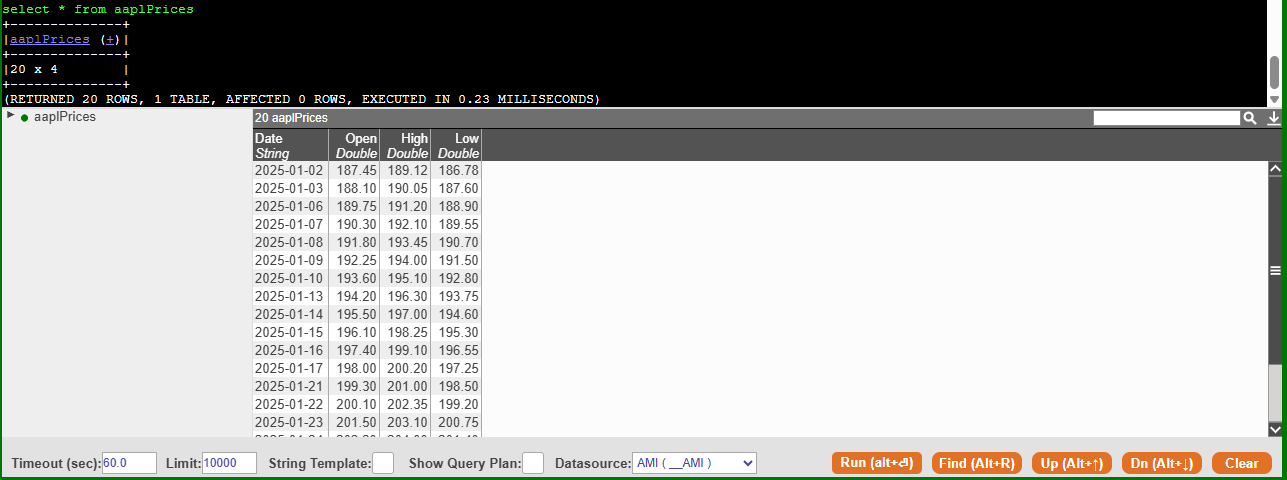
View the data in the table by running
SELECT *in the Center's AMIDB shell tool:This will output the following: